

Updated January 2026
Starting every mix from scratch can waste valuable creative time. A well-organized Pro Tools mix template streamlines your workflow, letting you focus on making music sound great instead of building routing from zero. This guide will walk you through creating a basic mix template that you can customize and reuse for every project.
Why Use a Mix Template?
A mix template is like having a pre-wired studio ready to go. Instead of creating buses, organizing tracks, and setting up your routing every time you start a mix, you open your template and everything is already in place. This consistency also helps you work faster because your tools are always in the same spot.
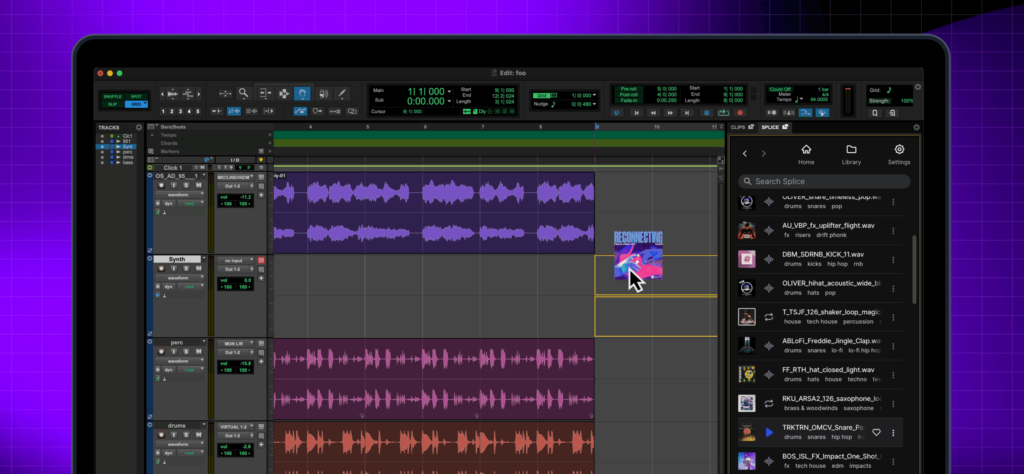
Step 1: Plan Your Track Organization
Before diving into Pro Tools, sketch out your typical track layout. Most mix templates follow a logical flow from top to bottom:
- Drums (kick, snare, hi-hats, toms, overheads, room mics)
- Bass
- Guitars (rhythm, lead, acoustic)
- Keys/Synths
- Vocals (lead, doubles, harmonies, ad-libs)
- Effects Returns
- Mix Buses
- Master Fader
This order mirrors the typical mixing process and keeps related instruments together, making navigation intuitive.
Step 2: Create Your Session Structure
Open a new Pro Tools session and start building your template:
- Create audio tracks for each instrument category you typically work with. Don’t create too many—you can always add more later. A good starting point might be:
- 8-10 drum tracks
- 2-3 bass tracks
- 4-6 guitar tracks
- 4-6 keyboard/synth tracks
- 6-8 vocal tracks
- Name your tracks clearly. Instead of “Audio 1,” use descriptive names like “KICK,” “SNARE,” “LEAD VOX,” etc. This saves confusion later.
- Leave blank tracks between instrument groups as visual separators in your mix window.
Step 3: Implement Color Coding
Color coding is one of the simplest yet most powerful organizational tools in Pro Tools. It provides instant visual recognition of track types.
Choose a color scheme and stick with it across all projects:
- Drums: Red or brown
- Bass: Dark blue or purple
- Guitars: Orange or yellow
- Keys/Synths: Green or cyan
- Lead Vocals: Bright pink or magenta
- Background Vocals: Light pink or lavender
- Effects/Reverbs: Gray
- Buses: White or light gray
- Master: Black or dark gray
To apply colors in Pro Tools:
- Select the tracks you want to color
- Right-click on the track name
- Choose “Color” and select your color
- Apply the same color to the track name, waveform, and clips for maximum clarity
The goal is to glance at your session and immediately know what you’re looking at.
Step 4: Set Up Your Bus Structure
Buses are the backbone of an efficient mixing workflow. They allow you to process groups of instruments together and create dimension through effects.
Create Your Mix Buses
Start by creating stereo auxiliary tracks for your main instrument groups:
- Drums Bus – Routes all drum tracks here before the master
- Bass Bus – Captures all bass elements
- Guitar Bus – Combines all guitar tracks
- Keys Bus – Groups keyboards and synths
- Vocal Bus – Handles all vocal tracks together
- Master Fader – Your final output stage
To route tracks to buses:
- Select your drum tracks
- In the I/O section, click the output selector
- Choose “Bus” and create a new bus (Bus 1-2 for stereo)
- Name it “DRUM BUS”
- Create a new stereo aux track
- Set its input to Bus 1-2
- Name the aux track “DRUM BUS”
- Route the aux track’s output to your master fader or main output
Repeat this process for each instrument group. This structure gives you powerful control—you can process entire groups with one plugin, adjust the overall level of all drums with one fader, and create a more organized mixing environment.
Add Effects Buses
Create auxiliary tracks for common time-based effects:
- Reverb 1 (Short – for drums and percussion)
- Reverb 2 (Medium – for instruments)
- Reverb 3 (Long – for vocals and special effects)
- Delay 1 (Eighth note – rhythmic)
- Delay 2 (Quarter note – lead vocals)
Set these up as send/return effects:
- Create a stereo aux track
- Name it (e.g., “REVERB – VOCAL”)
- Insert your reverb plugin on the aux track
- Set the plugin to 100% wet
- Set the aux input to an unused bus (e.g., Bus 15-16)
- From any track, create a send to that same bus
Now you can send multiple tracks to the same reverb, saving CPU and creating cohesion.
Step 5: Set Up VCA Masters (Optional but Powerful)
VCA (Voltage Controlled Amplifier) tracks let you control multiple faders at once without changing your routing. They’re perfect for quick balance adjustments.
Create VCAs for:
- All drums
- All vocals
- All instruments
To create a VCA:
- Select the tracks you want to control
- Go to Track > New
- Choose VCA Master
- The VCA will automatically control your selected tracks
Now you can ride the overall level of all drums, for example, without changing your individual drum mix or bus processing.
Step 6: Save Your Template
Once everything is organized:
- Go to File > Save As Template
- Give it a clear name like “Music Mix Template – Basic”
- Add a description of what’s included
- Click OK
Your template is now available whenever you create a new session by choosing File > New and selecting your template from the dropdown menu.
Customizing and Evolving Your Template
Your first template doesn’t need to be perfect. As you mix more songs, you’ll discover what works for your style:
- Add more tracks if you consistently need them
- Remove tracks you never use
- Adjust your bus structure based on your mixing approach
- Add your favorite plugins to certain channels if you use them on every mix
- Update your color scheme if it’s not working visually
The best template is one that fits your workflow and speeds up your process without getting in the way of creativity.
Quick Tips
- Keep it simple at first. Don’t overwhelm yourself with 100 tracks if you typically work with 30.
- Create multiple templates for different project types (full band, electronic, hip-hop, etc.)
- Update regularly. As your skills grow, your template should evolve too.
- Back it up. Save your template files in multiple locations.
Conclusion
A well-designed Pro Tools mix template is an investment in your future workflow. The hour you spend setting it up will save you countless hours over your mixing career. Start with this basic structure, customize it to match your style, and watch your mixing sessions become more efficient and enjoyable.
Need Professional Mixing and Mastering?
While building your own skills is invaluable, sometimes your music deserves the expertise of a professional mixing and mastering engineer. Whether you’re working on your debut single, an EP, or a full album, I offer professional mixing and mastering services to help your tracks reach their full potential.
Get in touch today to discuss your project and learn how we can make your music sound radio-ready and competitive across all streaming platforms.
Now stop reading and start building—your next great mix is waiting for you!